Clicking the pencil in a row opens the task.
Subtasks
Under Subtasks you split a task into steps. Each subtask can have its own assignee. The task's progress (e.g. 1/3) is calculated from the completed subtasks and shown in the list and on the board.
Reminder & appointment
- Create reminder – you are reminded at the time you choose.
- Create appointment – adds an appointment for the task to the calendar.
Visibility
The Visibility field controls who sees a task:
| Setting | Who sees the task |
|---|---|
| By group permissions (default) | Participants and everyone whose group may see all tasks of the company. |
| Participants only | Only the creator and assignees. |
| Participants and readers | Additionally people entered explicitly, read-only. |
Note: If the task is linked to another object – an appointment or a vehicle – the company can decide that anyone who may see that object can also read the task.
Comments, history and links
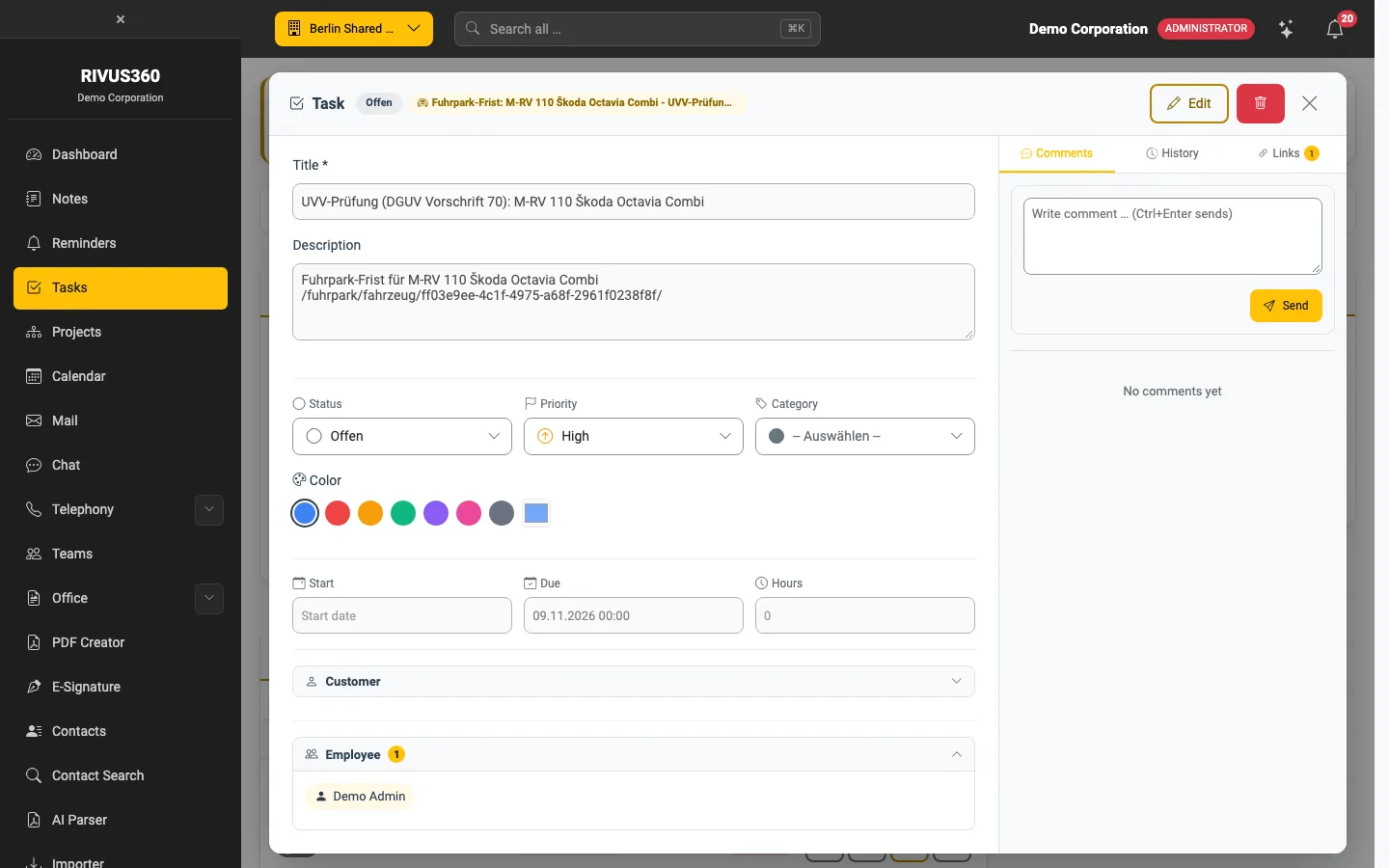
On the right of the dialog:
- Comments – questions and agreements right on the task. Participants are notified.
- History – every change with time and person.
- Links – links to contacts, projects, tickets and other records.
Tasks in other apps
Many apps (contacts, projects, fleet, tickets …) show a Tasks section on their records. Tasks created there are linked to the record automatically and also appear in your task list.