Click New note or select a note in the list. Saving is automatic – the top shows when it last happened.
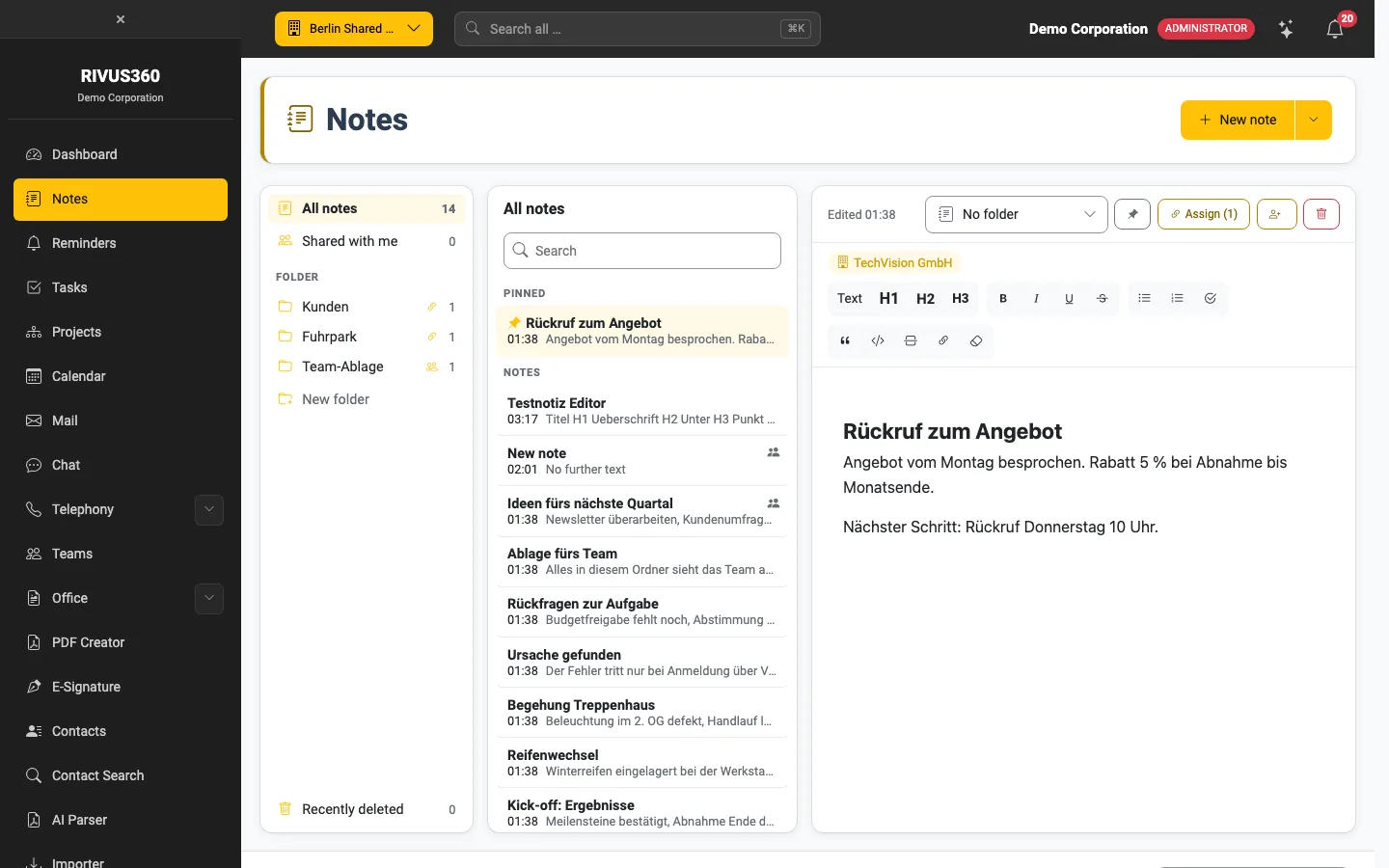
The bar above the text
| Element | Effect |
|---|---|
| Folder | Puts the note in a folder (No folder = loose). |
| Pin | Pins the note to the top of the list. |
| Assign | Attaches the note to contacts, projects and more – see Share and assign notes. The number counts the assignments. |
| Person with plus | Share with people, groups or teams. |
| Trash can | Deletes the note – it goes to Recently deleted. |
Below it, the assigned records appear as badges (e.g. a company).
Formatting
Text, H1–H3 for headings, bold, italic, underline, strikethrough, bullet list, numbered list, checklist, quote, code, divider, link and clear formatting.
Trash
Deleted notes are under Recently deleted. There you restore them or empty the trash for good.
Warning: Notes deleted for good cannot be recovered.