Some apps on your phone or computer cannot sign in through the platform's sign-in page – for example ONLYOFFICE Documents on iPhone and Android for your office documents. For these you create a separate app password. Your real password stays secret, and each app password can be revoked on its own at any time.
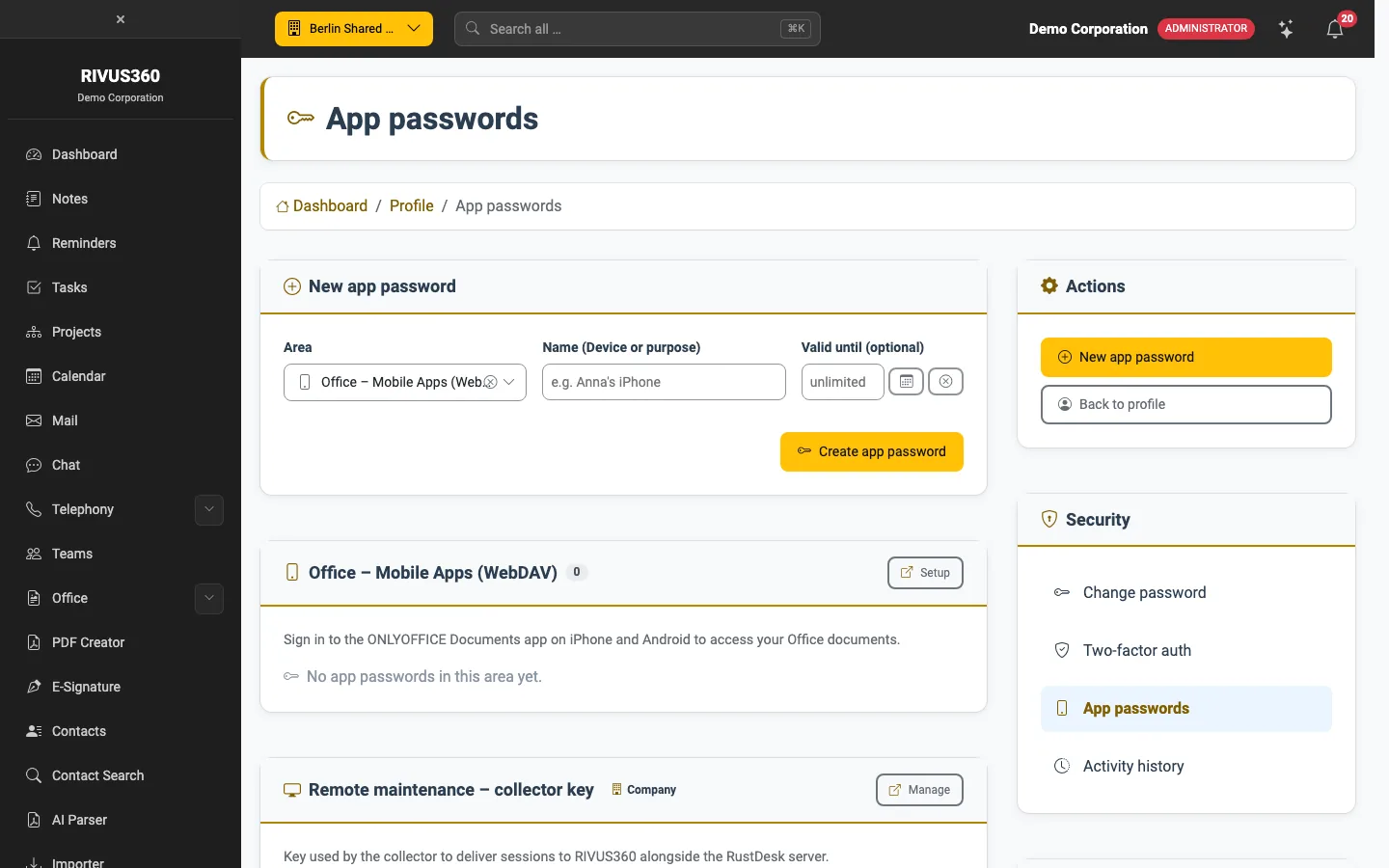
Create an app password
- Open Profile → Security → App passwords.
- Choose the area, e.g. Office – mobile apps (WebDAV).
- Enter a name that identifies the device ("Anna's iPhone").
- Optional: Valid until – after that the password stops working.
- Click Create app password and enter the password shown in the app.
Warning: The password is shown only once. If you lose it, delete it and create a new one.
The list shows for each area which app passwords are active and whether they have been used. To lock out a lost or retired device, delete its app password.