After signing in you land on the dashboard. The interface is laid out the same way everywhere.
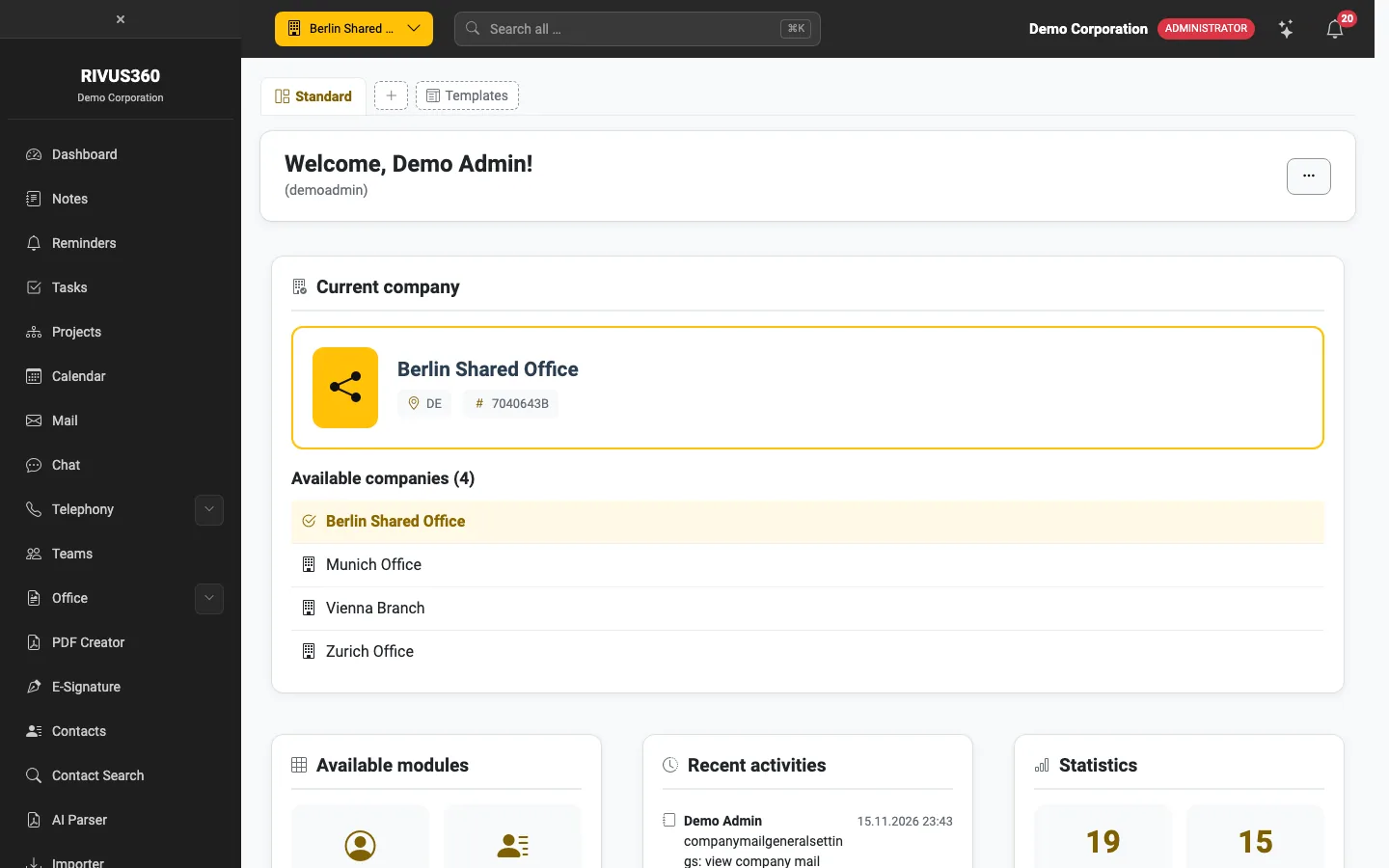
Parts of the interface
| Area | Purpose |
|---|---|
| Side menu on the left | All apps your company has booked and you are allowed to see. Entries with an arrow have sub-items. |
| Company switcher top left | Switches between the companies you belong to. Everything on the page always refers to the selected company. |
| Search at the top | Searches contacts, tasks, notes and other apps at once. Shortcut: ⌘ + K or Ctrl + K. |
| AI help (sparkle icon) | Answers questions about the platform right on the page. |
| Bell | Your notifications, for example new tasks or comments. |
The dashboard
The dashboard shows the current company, the available companies, your modules, recent activity and key figures. Use Templates to add ready-made dashboards that fit your apps, and + to add your own tabs.
Note: Which apps appear in the menu depends on the booked modules and your permissions. If an app is missing, contact your administrator – see Groups and permissions.
Next
- Profile, language and appearance – set language, time zone and appearance
- Tasks at a glance – the Tasks app
- Notes at a glance – the Notes app