Click New task. The task dialog opens.
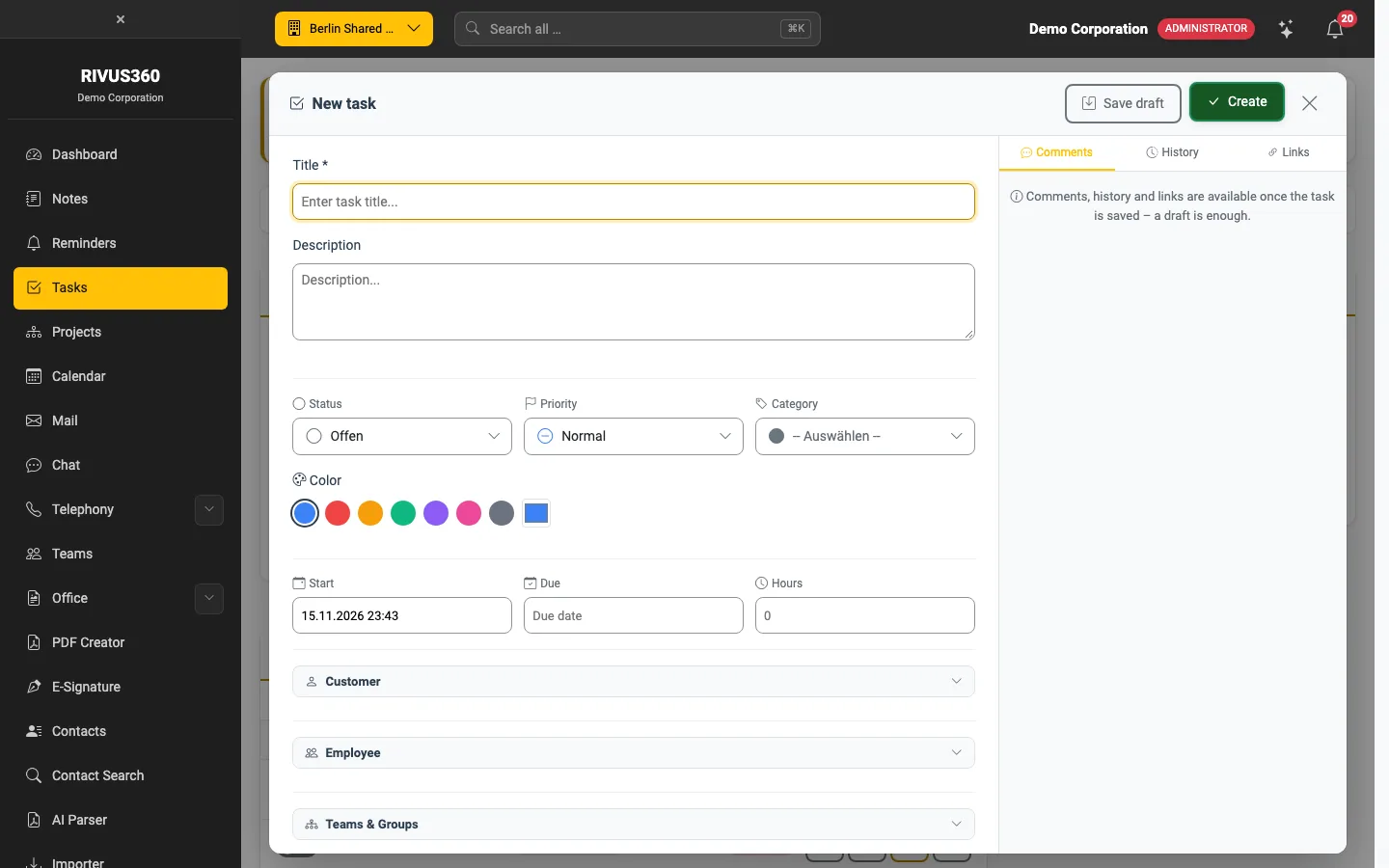
The fields
| Field | Meaning |
|---|---|
| Title | Required. Short and clear ("Send quote to Müller GmbH"). |
| Description | Details, links, background. |
| Status | Open, In progress, Review, Completed … – your administrator defines the list. |
| Priority | Low, Normal, High, Urgent. |
| Category | Classifies the task (Sales, HR, IT & technology …). May be required. |
| Colour | Colour mark in the list and on the board. |
| Start / Due | Time frame of the task. Overdue tasks are marked red. |
| Hours | Estimated effort. |
| Customer | Links the task to a contact. |
| Employees | Who does the task. Several are possible. |
| Teams & groups | Shares the task with a whole team – if your company allows it. |
Click Create. The assignees are notified unless they have switched this off in their settings.
Save as draft
Save draft stores the task as a draft: it is saved but not yet created and invisible to others. Find drafts via the Drafts filter. Required fields such as category or due date do not apply to drafts yet.
Note: Comments, history and links (right column) become available as soon as the task is saved – a draft is enough.
Continue with Edit and track tasks.