The Tasks app collects everything that needs doing: your own tasks, tasks someone assigns to you, and tasks other apps create automatically – such as an approval, a fleet deadline or a follow-up from a ticket.
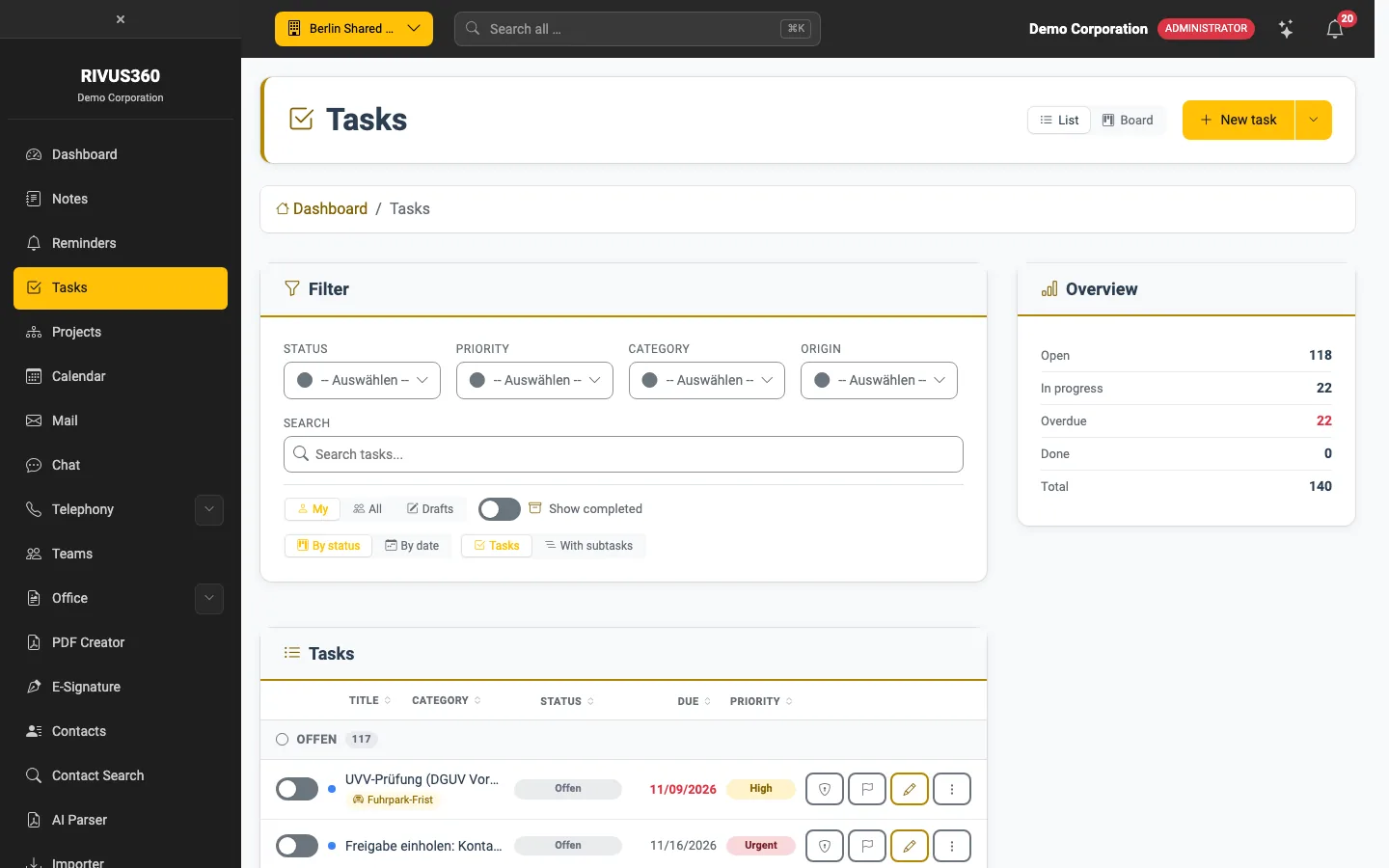
Layout of the page
- List / Board at the top right switches the view – see The board.
- New task creates a task – see Create a task. The arrow next to it offers more options.
- Filters: by status, priority, category and origin (the app the task came from), plus a full-text search.
- Mine / All / Drafts: Mine shows tasks you are involved in; All every task of the company you may see; Drafts your saved tasks that have not been created yet.
- Show completed includes completed and cancelled tasks.
- By status / By date groups the list; Tasks / With subtasks shows subtasks as rows of their own.
- Overview on the right counts open, in progress, overdue and completed tasks.
In each row
Use the switch on the left to mark a task as done. On the right there are four buttons:
| Button | Effect |
|---|---|
| Shield | Access & participants – who sees and edits the task |
| Flag | Change status |
| Pencil | Edit – opens the task, see Edit and track tasks |
| Dots | More actions: open, copy link, delete |
Note: How the page starts (list or board, Mine or All, grouping) is set in your My task settings.